
When you're managing an inventory of vehicles across online platforms—whether you're listing dozens of cars on a dealership website, managing a Turo fleet, or maintaining consistent catalog images—background consistency becomes a critical competitive advantage. Animated GIFs are particularly useful for showcasing vehicle details: a rotating view of the car's exterior, a 360-degree spin from the lot, or a quick walkthrough of the interior. Yet when these GIFs are shot in different locations—parking lots, dealership grounds, or varied lighting conditions—the inconsistent backgrounds undermine the professional appearance you're trying to project. This directly impacts buyer confidence and listing performance.
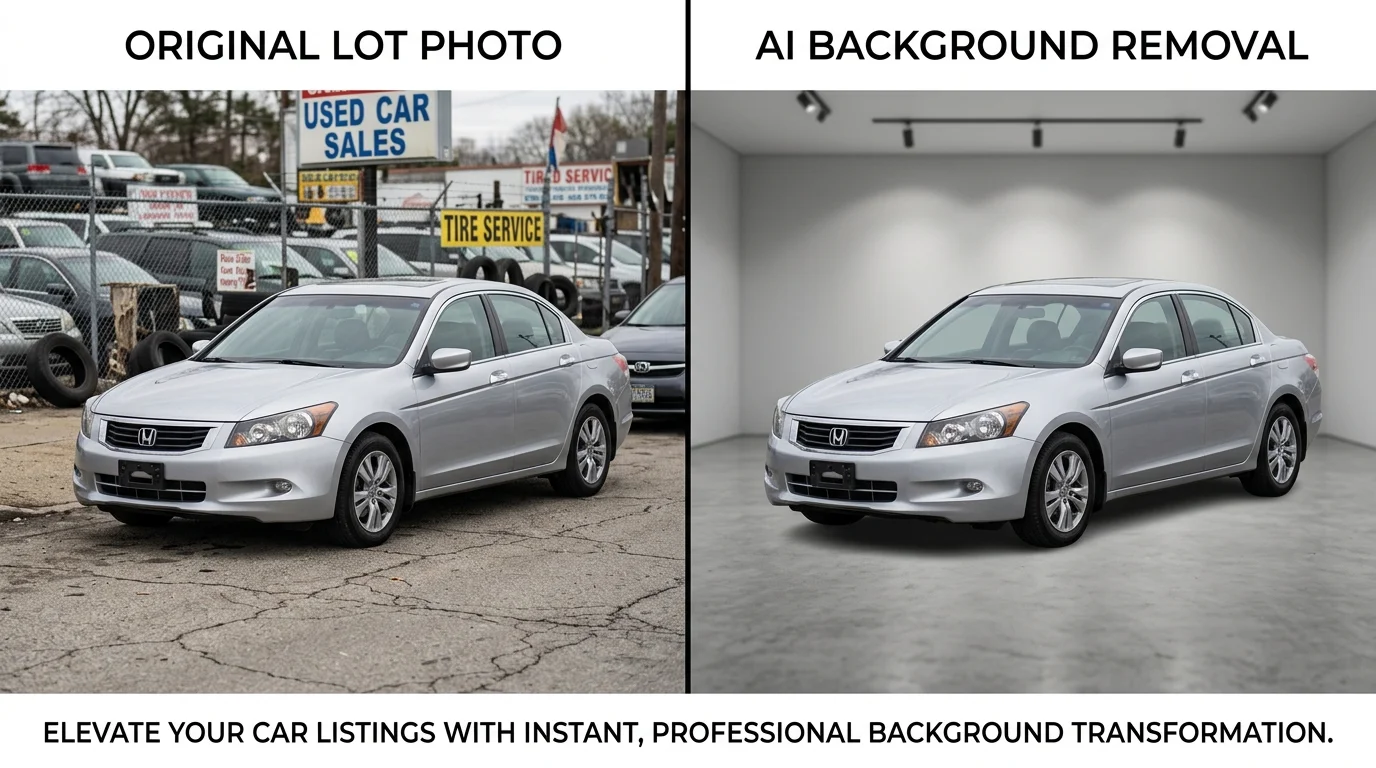
Removing backgrounds from animated GIFs restores visual uniformity across your inventory, eliminates distracting elements (parking lot clutter, other vehicles, signage), and allows you to present each car against a clean, branded backdrop. The result is a more polished online presence that competes with high-budget studio photography—without the $25,000–$60,000 setup costs or per-car fees of $30–$50 that traditional photographers charge.
Quick Answer: The most efficient way to remove backgrounds from animated GIFs is using AI-powered background removal tools designed for automotive imagery. These tools process each frame of the GIF automatically, maintaining animation integrity while delivering clean, transparent results in seconds—significantly faster and cheaper than manual editing or reshoot approaches.
This guide walks you through the process, explores why background removal matters for your dealership's digital presence, and shows you how to maintain animation quality while achieving professional results. You'll also learn when DIY methods work best and when specialized automotive tools deliver superior outcomes.
Table of Contents
- Why Car Dealers Need Background Removal for GIF Images
- Methods for Removing Backgrounds from Animated GIFs: Comparison and Workflow
- Step-by-Step Guide: Removing GIF Backgrounds Using AI Tools
- Prerequisites
- Step 1: Upload Your Animated GIF File
- Step 2: Initiate Automated Background Removal
- Step 3: Select a Professional Background from 100+ Options
- Step 4: Adjust Settings and Preview
- Step 5: Download Your Processed GIF
- Batch Processing for Multiple Vehicles
- Best Practices for GIF Background Removal in Dealership Operations
- Streamline Your Dealership Photography: Why AI Background Removal Wins
Why Car Dealers Need Background Removal for GIF Images
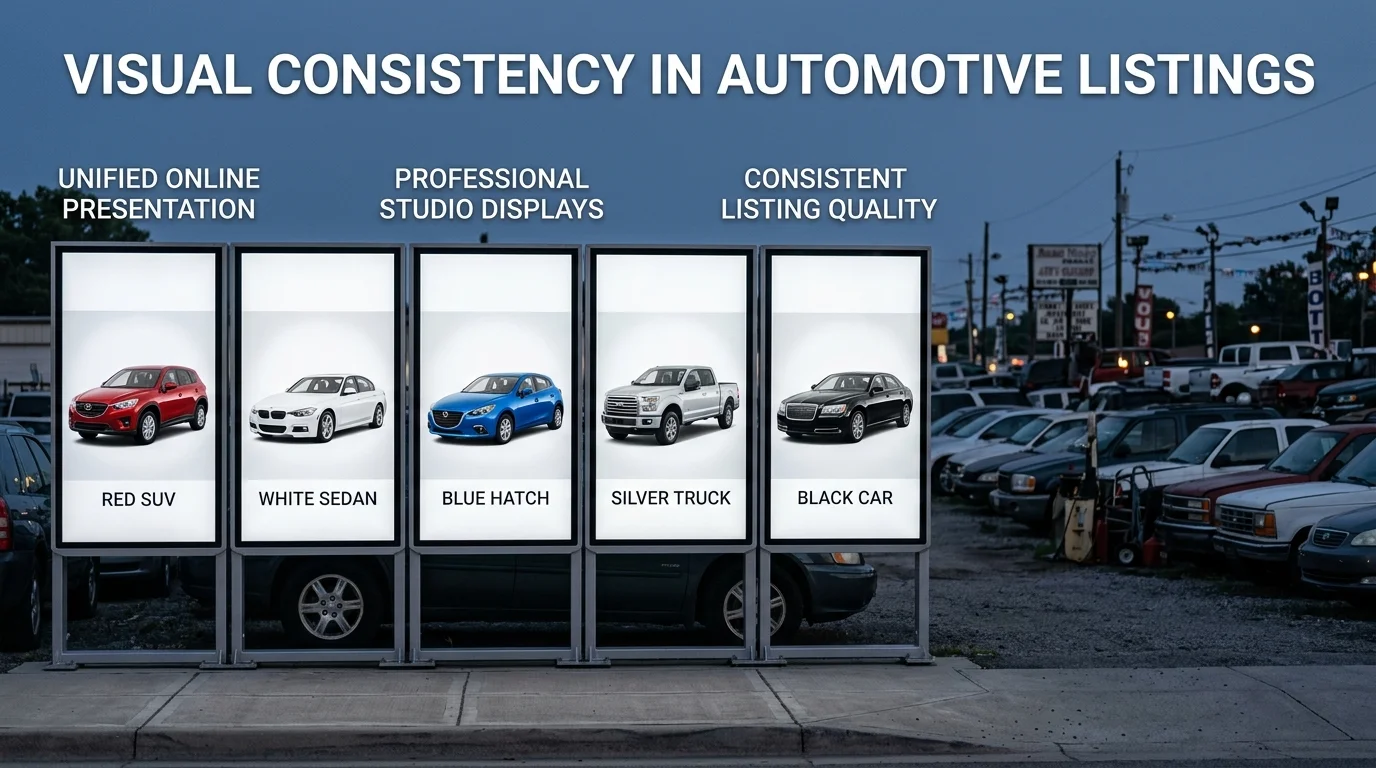
Dealerships face a fundamental challenge: maintaining visual consistency across hundreds of vehicle listings while managing tight budgets and aggressive timelines. When inventory photos come from multiple sources—lot shots, trade-ins, auction acquisitions—the backgrounds vary wildly. One vehicle sits against a cluttered parking lot; another has signage, other cars, or weather-dependent lighting in the frame. This inconsistency signals unprofessionalism to buyers browsing online, directly undermining your competitive position.
The cost of traditional solutions compounds the problem. Professional automotive photography runs $10–$30 per vehicle for basic editing, with top-tier photographers charging $50–$300 per hour. A four-hour shoot averages $800, and that covers only a handful of cars. For dealerships managing 50–200 active listings, the math becomes prohibitive—especially when you need multiple background options (showroom, outdoor, luxury settings) to match different buyer preferences and seasonal campaigns.
GIFs present a unique opportunity. They showcase vehicle details through animation—rotating 360-degree views, detail close-ups, or feature highlights—yet they inherit the same background problems as static photos. A rotating GIF against a messy lot background loses all its persuasive power. According to research from VDP IQ, high-quality vehicle images increase online listing views by 47% and generate 62% more leads. When 90% of car buyers research online before visiting a dealership, and 40% decide whether to purchase based solely on images they see, removing distracting backgrounds becomes a business imperative, not a luxury.
Background removal for GIFs solves this at scale. You preserve the animation's value while presenting each vehicle against a clean, branded backdrop—whether that's a showroom, urban setting, or nature scene. The result competes visually with high-budget studio photography without the $25,000–$60,000 equipment investment or per-vehicle fees that drain margins.
Methods for Removing Backgrounds from Animated GIFs: Comparison and Workflow
Four primary approaches exist for removing backgrounds from animated GIFs, each suited to different operational scales and technical comfort levels. Understanding the trade-offs between speed, cost, and quality is essential for dealerships managing inventory at scale.
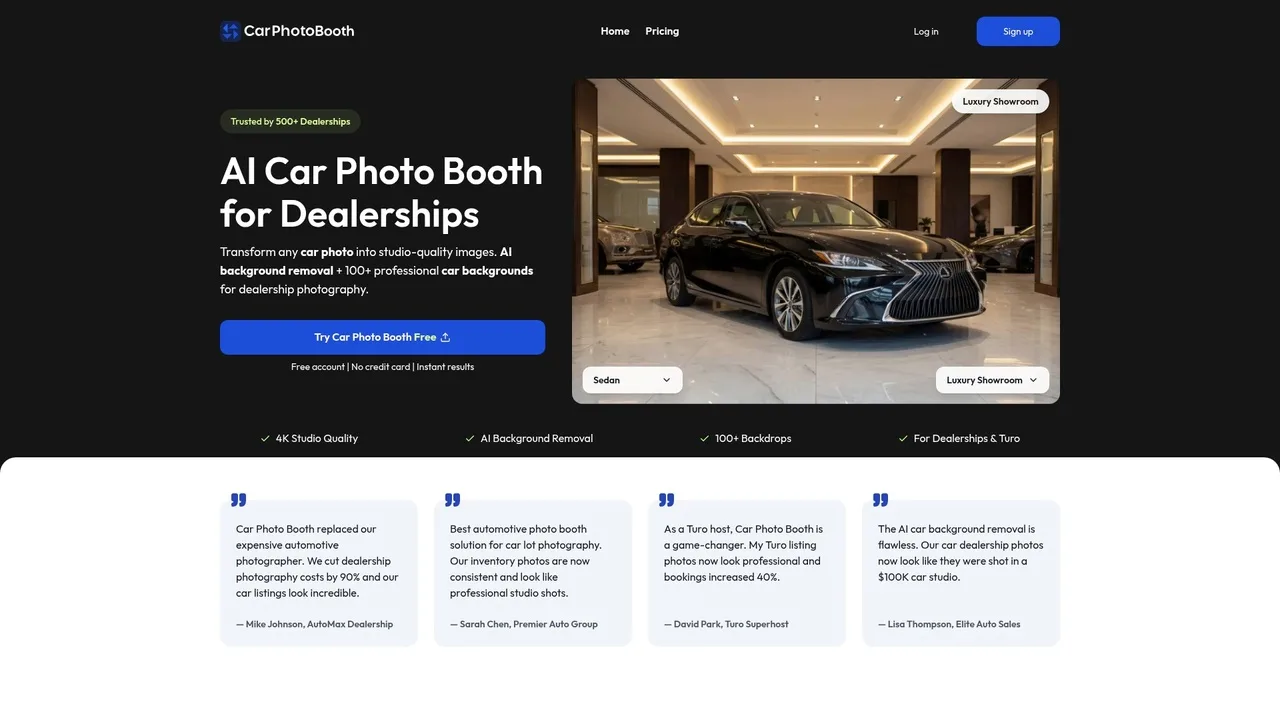
AI-Powered Automated Tools represent the fastest path for bulk processing. These platforms analyze each frame simultaneously, detecting vehicle edges and removing backgrounds in seconds without manual intervention. Car Photo Booth, for example, processes animated GIFs frame-by-frame automatically while preserving animation smoothness, then applies one of 100+ professional backdrops—showroom, urban, luxury settings—in a single operation. This method eliminates per-frame editing entirely. Processing time averages 10–15 seconds per GIF, with no technical skill required. Cost starts at $3 per image, making it economical even for dealerships processing 50+ vehicles monthly.
Online GIF Editors (Ezgif, Photopea) offer frame-by-frame manual removal. You upload the GIF, extract individual frames, remove backgrounds manually using selection tools, then recompile. This approach provides granular control but demands 3–5 minutes per vehicle and requires basic image editing knowledge. Suitable only for small batches (5–10 vehicles) or when precise, custom backgrounds are non-negotiable.
Desktop Software (Photoshop, GIMP) enables advanced frame manipulation but carries steep learning curves and upfront costs. Photoshop's timeline feature allows batch processing across frames, yet setup time often exceeds 30 minutes per project. Best reserved for specialized workflows where animation quality or custom effects justify the investment.
Manual Frame-by-Frame Editing in video editors (DaVinci Resolve, Premiere) works for complex animations but is prohibitively time-intensive—often 20–30 minutes per GIF—and impractical for dealership operations.
| Method | Speed | Cost Per Image | Technical Skill | Best For |
|---|---|---|---|---|
| AI Automated (Car Photo Booth) | 10–15 sec | $3–7 | None | Bulk processing, dealerships |
| Online GIF Editors | 3–5 min | Free–$5 | Basic | Small batches, custom needs |
| Desktop Software | 20–40 min | $20–55/month | Intermediate | Specialized, high-volume studios |
| Manual Frame Editing | 20–30 min | $0 (time cost) | Advanced | Rare, complex animations |
For dealership operations, AI-powered solutions dominate. They compress what would require hours of manual work into minutes while maintaining consistent quality across your entire catalog. When you're managing 100+ active listings, the mathematics favor automation—not just financially, but operationally. This is why how to change car photo backgrounds has become a core dealership workflow rather than a luxury.
Step-by-Step Guide: Removing GIF Backgrounds Using AI Tools
Prerequisites
Before you begin, ensure you have the following in place: a GIF file of your vehicle (typically 2–5 MB), an active internet connection, and approximately 5–10 minutes for the entire process. No specialized software installation is required when using cloud-based AI tools. Basic familiarity with uploading files to a web application is helpful but not essential—most modern platforms guide you through each action visually.
Step 1: Upload Your Animated GIF File
Navigate to your chosen AI background removal platform and locate the upload section. Click the upload button and select your vehicle GIF from your computer. The system will accept most standard GIF formats, though files larger than 50 MB may require compression first. Once uploaded, you'll see a preview of your animation playing in the interface—verify that all frames appear correctly and that the vehicle is clearly visible against the background you want to remove.
Expected result: Your GIF preview displays with a progress indicator showing successful upload completion.
Step 2: Initiate Automated Background Removal
Select the "Remove Background" option from the menu. The AI processes each frame of your animated GIF individually, detecting vehicle edges and separating them from the surrounding environment. This happens automatically—no manual frame-by-frame work is required. The system analyzes color contrast, shadows, and vehicle contours across all frames to maintain consistency throughout the animation.
Pro tip: If your GIF contains complex shadows or reflective surfaces, the AI typically handles these intelligently, but you can preview results before finalizing.
Expected result: Processing completes in 10–15 seconds, and you see a transparent-background version of your animated GIF.
Step 3: Select a Professional Background from 100+ Options
Once background removal is complete, browse the professional backdrop library. Options range from clean studio environments (white, gray, black) to contextual settings like luxury showrooms, urban streets, and natural landscapes. Each background is optimized for automotive photography and maintains consistent lighting across all frames of your GIF. Select the background that best matches your listing's target audience—dealership inventory typically performs well with showroom or neutral backgrounds, while Turo listings benefit from lifestyle contexts.
Expected result: Your vehicle GIF now displays against your chosen professional background in real time.
Step 4: Adjust Settings and Preview
Fine-tune edge smoothing, shadow intensity, and background brightness if needed. Most AI tools offer simple slider controls rather than complex technical parameters. Preview your animated GIF at full resolution to ensure the vehicle appears natural against the new background and that all frames transition smoothly. Check for any artifacts or unnatural edges—quality platforms catch these automatically, but a visual review takes only seconds.
Step 5: Download Your Processed GIF
Export your final animated GIF in your preferred resolution (2K or 4K). The file will be ready for immediate use across your dealership website, Turo listings, or inventory management system. Download time typically takes 30–60 seconds depending on file size and your internet connection.
Batch Processing for Multiple Vehicles
If you're managing dozens of vehicle listings, use batch upload features available in most AI platforms. Upload 10–50 GIFs simultaneously, apply the same background and settings across all files, and download them as a compressed folder. This workflow reduces per-vehicle processing time to under 2 minutes and eliminates repetitive manual steps—essential when you're refreshing inventory across multiple platforms.
Best Practices for GIF Background Removal in Dealership Operations
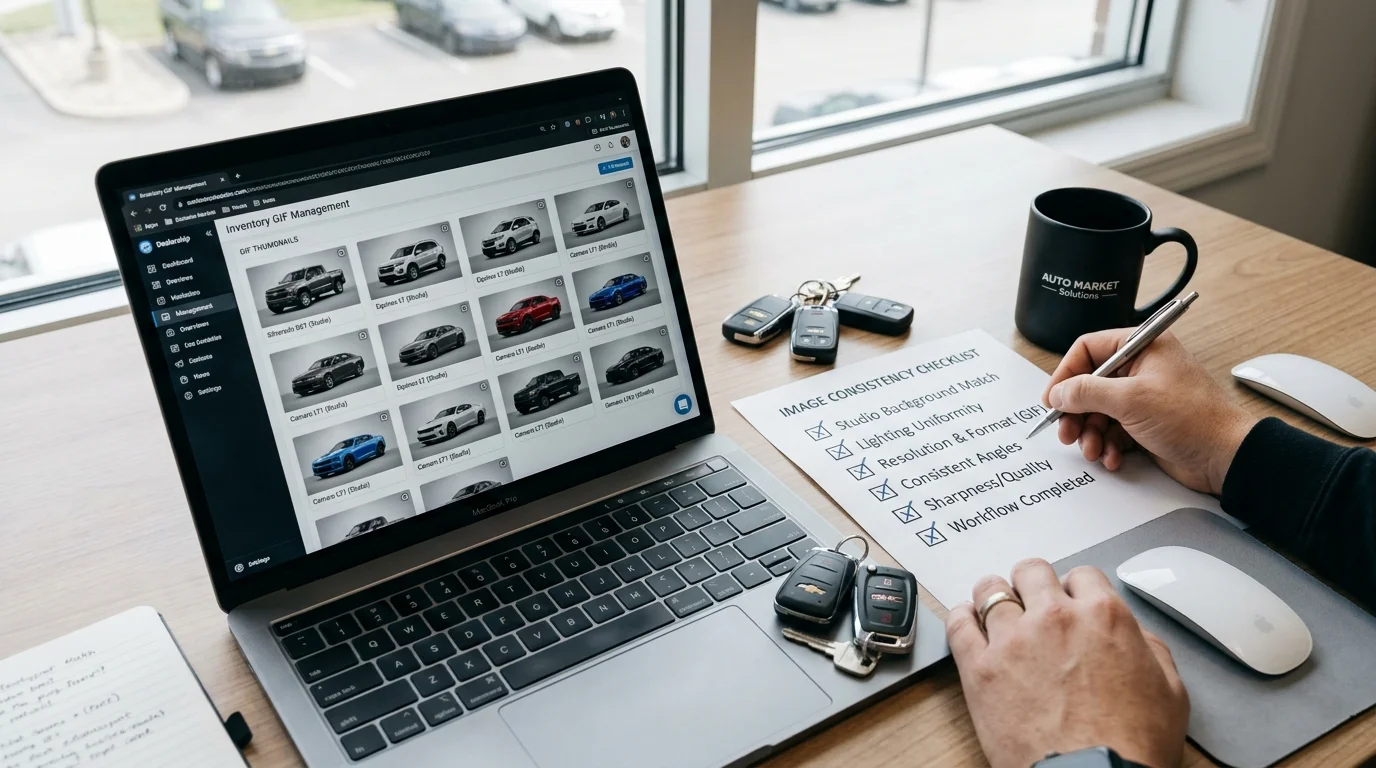
Consistency across your vehicle inventory is non-negotiable when managing listings across multiple platforms. According to research from CarCutter, 67% of consumers consider image quality to be "very important" in their purchasing decisions, and unified backgrounds strengthen brand presence and buyer trust. When removing backgrounds from animated GIFs, establish a standardized workflow that applies the same visual treatment to every vehicle in your catalog.
Optimal GIF Dimensions and Format
Export your processed GIFs at 1280×960 pixels or higher for web listings—this resolution displays sharply on desktop and mobile without excessive file size. Most dealership platforms (AutoTrader, Craigslist, your own website) accept GIFs up to 10MB; keep file sizes under 5MB by using moderate compression. Animated GIFs with 8–12 frames per second create smooth motion without bloating the file, ideal for 360-degree vehicle rotations or detail showcases.
Background Selection by Vehicle Type
Match your background to the vehicle's market positioning. Luxury vehicles benefit from showroom or urban backgrounds that convey premium positioning; budget-friendly models perform better against clean white or neutral studio backdrops that emphasize affordability and clarity. Mid-range inventory suits versatile options like outdoor dealership settings or professional garage environments. Consistency matters more than perfection—if your entire luxury fleet uses the same showroom background, buyers perceive professionalism and intentional curation.
Quality Assurance Before Publishing
Review each processed GIF at full resolution before uploading. Check for edge artifacts around the vehicle, ensure frame transitions are smooth throughout the animation, and verify that lighting appears natural against the new background. Test the GIF on your actual listing platform (not just your computer) to confirm it displays correctly across browsers and devices.
Workflow Optimization Checklist
- Use batch processing to apply identical settings across 10–50 GIFs simultaneously
- Maintain a naming convention (e.g.,
VIN_vehicle-type_background.gif) for easy inventory tracking - Store originals separately from processed files for future re-editing
- Document your chosen backgrounds and settings in a shared team spreadsheet
- Schedule weekly uploads rather than processing vehicles one-by-one
When you're managing dozens of listings, batch workflows reduce per-vehicle processing time to under two minutes. Tools like Car Photo Booth automate this scaling—upload multiple GIFs, apply your chosen background and quality settings once, and download the entire processed folder ready for immediate publication across AutoTrader, your dealership website, or Turo listings.
Streamline Your Dealership Photography: Why AI Background Removal Wins
The economics of vehicle photography have shifted dramatically. Traditional studio photography costs $30–50 per vehicle, while professional background removal through manual editing consumes hours per image. Dealerships managing 50–500 active listings face a brutal choice: invest thousands in professional photoshoots or accept inconsistent, unprofessional imagery that fails to convert browsers into buyers.
AI-powered background removal eliminates this false dilemma. Processing a GIF from lot photo to studio-ready listing now takes seconds instead of hours. The cost per vehicle drops to dollars rather than hundreds, making professional automotive photography accessible to independent dealers, Turo hosts, and small rental fleets competing against well-funded enterprises. Consistency across your entire inventory—whether 20 vehicles or 200—becomes automatic rather than a manual quality-control nightmare.
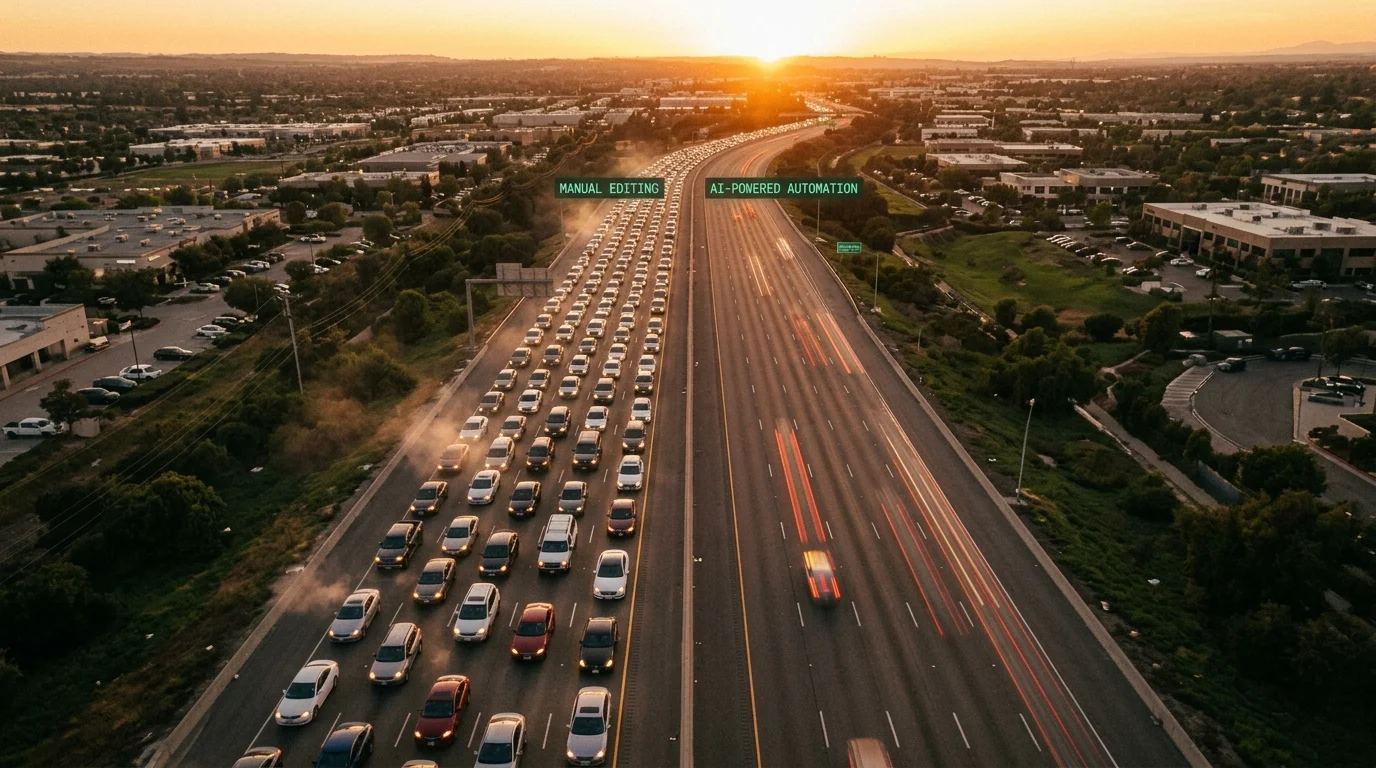
The competitive advantage is measurable. Listings with professional-looking imagery generate higher inquiry rates because they signal credibility and care. When a customer sees your inventory presented with polished, consistent backgrounds against competitors' cluttered lot photos, the psychological impact drives clicks and inquiries. Scaling this advantage across dozens of listings simultaneously is what separates thriving dealerships from those stuck in outdated workflows.
At Car Photo Booth, we've designed this process specifically for dealership operations. Upload your GIFs, apply your chosen background from 100+ studio options, and download processed inventory ready for AutoTrader, your website, or Turo—all without manual touch-ups or technical expertise. Start free with no credit card required to see how instant results transform your listing performance.