
Professional automotive photography demands precision, and mastering how to blur image background stands as one of the most transformative techniques in the industry. Whether you're photographing vehicles on a cluttered lot, dealing with distracting showroom elements, or simply aiming to isolate the car as the focal point, background blurring elevates your listings from amateur snapshots to gallery-quality presentations. The practice extends far beyond aesthetic preference—it directly influences buyer perception, engagement rates, and ultimately, conversion. When distractions vanish, the vehicle commands full attention, and the professionalism of your presentation speaks volumes.
Quick Answer: Background blurring removes or softens distracting elements behind your vehicle, making the car the undisputed focus of the image. This technique is essential for automotive listings because it increases buyer engagement, creates a cohesive brand appearance across your catalog, and compensates for imperfect shooting conditions. You can achieve this through manual editing tools, AI-powered solutions, or free online platforms—each offering different speed-to-quality ratios depending on your dealership's volume and budget.
Throughout this guide, you'll discover three primary pathways to blur image backgrounds in your car photos. Manual tools like Photoshop and Lightroom provide granular control but demand significant time investment. AI solutions, such as how Car Photo Booth transforms lot photos into studio-quality images, deliver professional results in seconds without requiring design expertise. Free online options bridge the gap for dealerships testing workflows before committing to paid platforms. By section's end, you'll understand which method aligns with your operation's scale, timeline, and budget—and why the fastest solutions increasingly dominate dealership workflows handling dozens of vehicles weekly.
Table of Contents
- Five Methods to Blur Your Car Photo Backgrounds: From DIY to AI-Powered
- Understanding Blur Types: Gaussian, Bokeh, Tilt-Shift, and Iris
- Comparison Table: Five Methods Side-by-Side
- Why AI Solutions Dominate Dealership Workflows
- Step-by-Step: Blurring Car Photo Backgrounds Using Photoshop
- Using Blur Gallery for Professional Results
- Handling Complex Car Elements (Reflections, Wheels, Chrome)
- Free and Fast Alternatives: Online Tools and AI Background Removal
- Why AI Background Removal Beats Manual Editing for Dealerships
- Free and Low-Cost Tools: Comparison and Limitations
- When AI Wins; When Manual Editing Still Matters
- Mobile Apps for On-the-Go Background Blurring
- Common Questions About Blurring Car Photo Backgrounds
- Choosing the Right Background Blur Method for Your Dealership or Photography Business
Five Methods to Blur Your Car Photo Backgrounds: From DIY to AI-Powered
Blurring car photo backgrounds ranges from manual pixel-by-pixel editing to fully automated AI processing. Each method trades control for speed—and your choice depends on inventory volume, budget, and the consistency you need across dealership listings. Understanding these five distinct approaches helps you select the right workflow for your operation.
Understanding Blur Types: Gaussian, Bokeh, Tilt-Shift, and Iris
Gaussian Blur applies uniform softening across the entire background, reducing detail evenly without simulating camera optics. This is the fastest option for batch processing dozens of lot photos weekly, ideal when you need consistent, neutral background reduction without artistic depth effects.
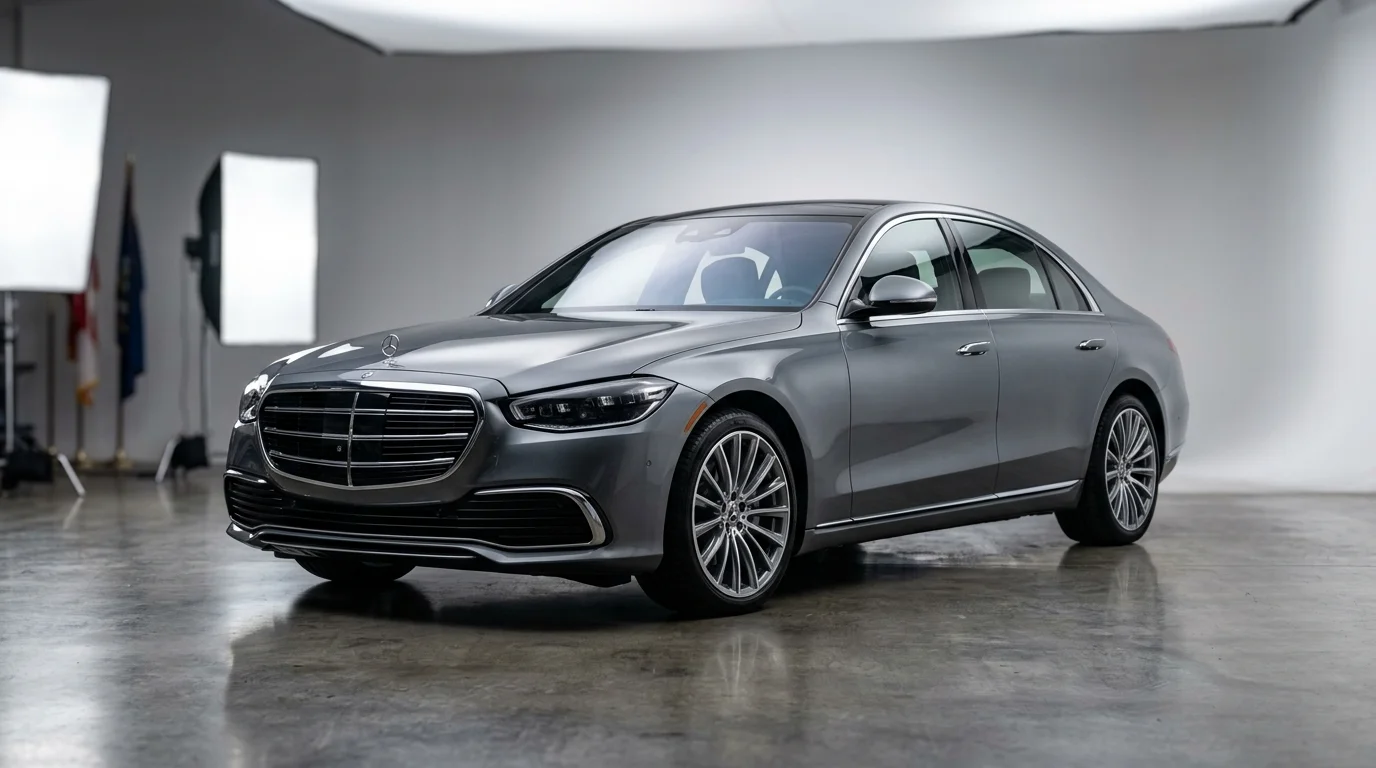
Bokeh Blur mimics the circular aperture effect of professional camera lenses, creating soft, circular light artifacts that feel natural to automotive photography. Use this for luxury vehicle close-ups or hero shots where you want the background to feel professionally photographed rather than digitally edited.
Tilt-Shift Blur selectively sharpens a horizontal or vertical band while blurring everything else, creating a miniature or focused-depth effect. This works well for overhead lot photography or when you want to isolate a specific vehicle detail while softening distracting surroundings.
Iris Blur creates a circular or oval focus area with sharp center and blurred edges, useful for emphasizing the vehicle's front grille or side profile. Dealerships use this less frequently but it excels when highlighting specific features in detail shots.
Comparison Table: Five Methods Side-by-Side
| Method | Cost | Ease of Use | Speed per Image | Output Quality | Best For |
|---|---|---|---|---|---|
| Photoshop (Blur Gallery) | $10.99–$21.99/mo | Intermediate | 5–10 min | Professional | Full control, small batches |
| Free Online Tools (Pixlr, Photopea) | Free | Easy | 3–5 min | Good | Testing workflows, occasional use |
| Mobile Apps (Snapseed, Blur Photo) | Free–$4.99 | Very Easy | 1–2 min | Good | Quick touch-ups, on-location editing |
| AI Background Removal (Car Photo Booth) | $3–$30/car | Very Easy | 10 sec | Studio-quality | High-volume dealerships, consistency |
| CSS/Web-Based Solutions | Free–$50/mo | Advanced | 2–4 min | Variable | Web developers, custom integrations |
Why AI Solutions Dominate Dealership Workflows
Manual blurring in Photoshop demands expertise and consumes 5–10 minutes per vehicle. Free online tools like Pixlr offer affordable alternatives for occasional use, but still require manual selection and adjustment. Mobile apps accelerate the process but sacrifice precision on complex backgrounds like parking lots or showroom interiors.
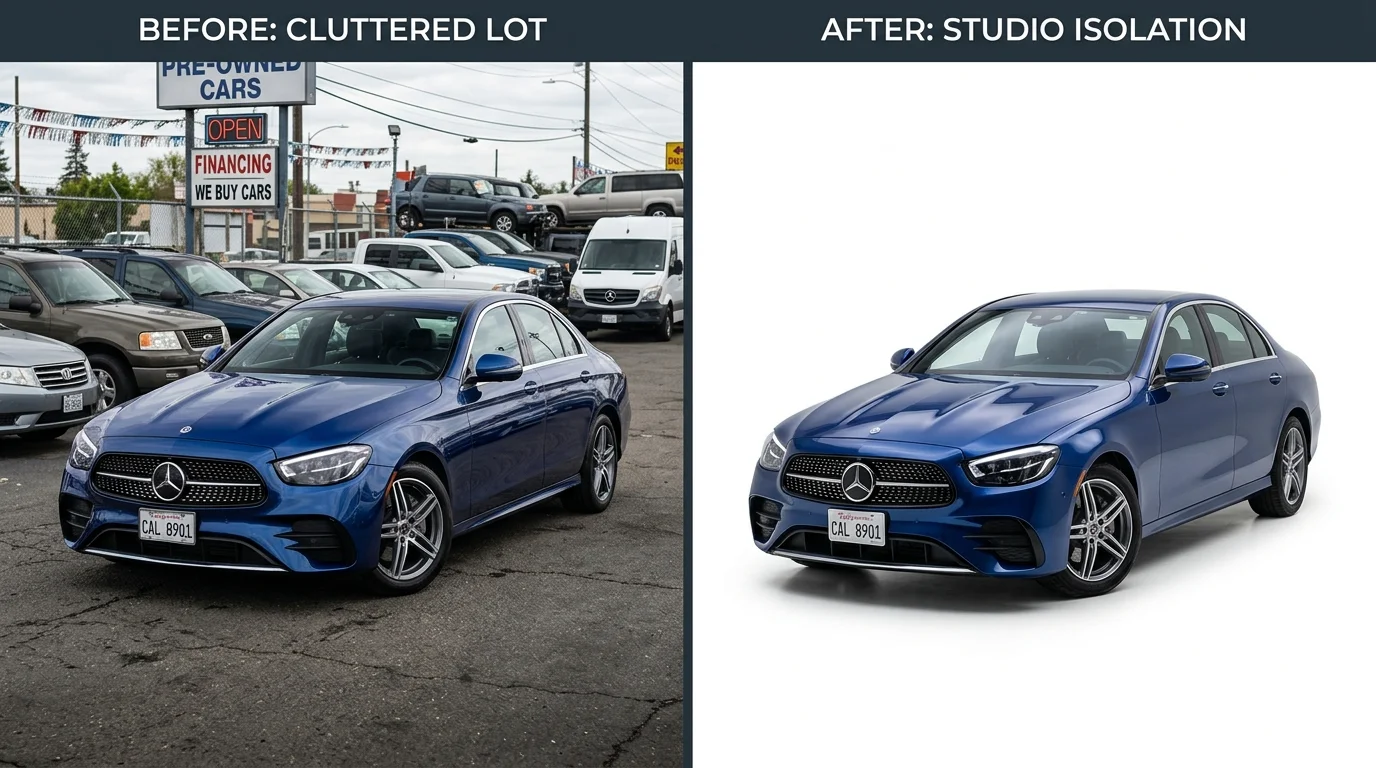
AI-powered background removal eliminates these friction points entirely. Solutions like Car Photo Booth process images in seconds, automatically detecting vehicle edges and replacing backgrounds with 100+ professional studio options—showroom, white, urban, or nature scenes. For dealerships managing 50+ weekly listings, this transforms economics: instead of $30–$50 per professional photograph, you achieve studio quality for $3 per image, with zero design expertise required. The consistency across your catalog also strengthens brand perception and buyer confidence, directly addressing the core problem that inconsistent lot photography creates.
Step-by-Step: Blurring Car Photo Backgrounds Using Photoshop
Photoshop remains the industry standard for precision background blurring, but the process demands technical skill and substantial time investment. According to research from Spyne AI, manual Photoshop background removal takes 15–30 minutes per vehicle, making it impractical for dealerships processing dozens of weekly listings. However, for photographers who already own Photoshop and need occasional high-precision results, mastering this workflow delivers uncompromising control over blur intensity and edge refinement.
Using Blur Gallery for Professional Results
Photoshop's Blur Gallery feature accelerates the blurring process compared to traditional layer masking. After isolating your vehicle using the Quick Selection Tool or Object Selection Tool, navigate to Filter > Blur Gallery to access three distinct blur options: Gaussian Blur (uniform softness across the background), Bokeh Blur (simulates shallow depth-of-field with circular light artifacts), and Iris Blur (creates a focal point with graduated blur falloff). Each option allows real-time preview adjustment—drag the blur radius slider to increase or decrease intensity while viewing results instantly on your image. For automotive photography, Bokeh Blur typically produces the most natural studio effect, mimicking professional camera lenses with shallow depth of field. Start conservatively at 15–25 pixels of blur radius; excessive blur (40+ pixels) can appear artificial and distract from the vehicle itself.
Handling Complex Car Elements (Reflections, Wheels, Chrome)
The critical challenge in automotive photography lies in protecting reflective surfaces and intricate shapes from unwanted blur. Chrome trim, polished wheels, and mirrored body panels require precise selection boundaries to remain sharp and detailed. Use Photoshop's Select and Mask workspace (Select > Select and Mask) to refine your initial vehicle selection with surgical accuracy. The Refine Edge tool allows you to paint along wheel rims, mirror edges, and bumper details to tighten the selection boundary, preventing blur from creeping onto the car itself. Pay particular attention to wheels—they contain fine spoke details and tire texture that blur destroys instantly. For reflections on the hood or side panels, zoom to 200% magnification and manually adjust the selection path using the Pen Tool before applying blur. This meticulous edge work consumes 3–5 minutes per image but separates amateur results from professional-grade output. Once satisfied with your refined selection, apply Blur Gallery and export at full resolution for web or print use.
Free and Fast Alternatives: Online Tools and AI Background Removal
Why AI Background Removal Beats Manual Editing for Dealerships
The business case for AI-powered background removal is straightforward: time equals money. A dealership managing 100+ vehicles in inventory faces a critical bottleneck—professional photo editing consumes 50+ hours monthly when done manually, whether through Photoshop, freelance editors, or offshore teams. AI background removal collapses this timeline to under 2 hours for the same inventory volume, while simultaneously ensuring visual consistency across all listings.
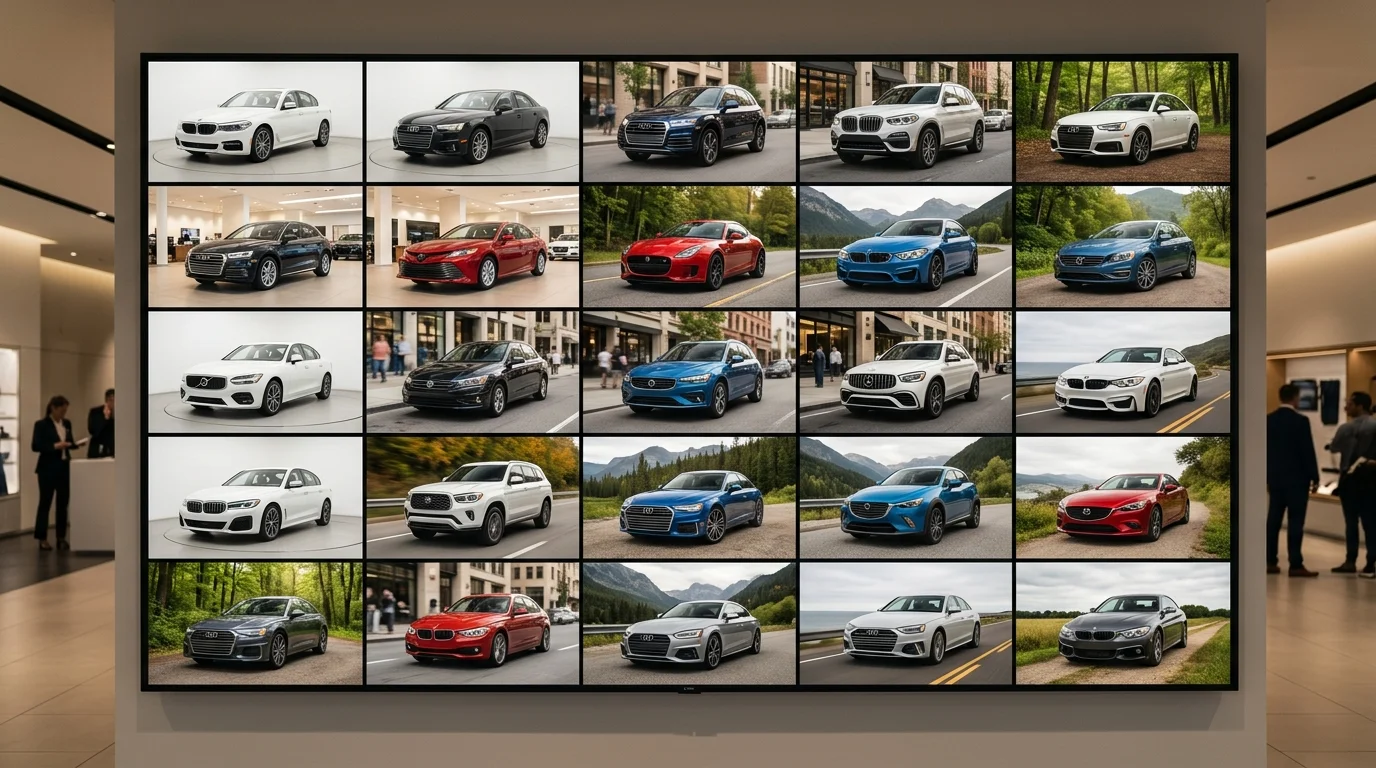
Consistency matters more than most dealers realize. When every vehicle photo shares the same professional backdrop—whether a luxury showroom, pristine white studio, or outdoor setting—buyers perceive the entire inventory as curated and trustworthy. Inconsistent backgrounds (some lot shots, some studio, some edited poorly) signal disorganization and erode confidence. According to research on automotive photography, listings with professional photos receive 118% more views than those with lower-quality images, and nearly 90% of shoppers are enticed to begin their sales journey based on quality photos from a dealer's website. AI tools automate both background removal and professional backdrop application in a single step—no manual selection, no edge refinement, no hours spent in Photoshop.
The accuracy advantage emerges when handling reflective surfaces, chrome trim, and complex wheel geometry. Modern AI models trained on thousands of automotive images recognize vehicle boundaries with precision that rivals manual Photoshop work, especially on standard angles (three-quarter, side profile, front). For bulk processing, AI outperforms manual editing because it eliminates human fatigue—the 50th car receives the same attention as the first.
Free and Low-Cost Tools: Comparison and Limitations
| Tool | Cost | Background Blur | Background Replacement | Processing Speed | Best For |
|---|---|---|---|---|---|
| Pixlr | Free (limited) / $9.99/mo | Yes, via blur filter | Limited; basic overlays only | 5–10 seconds per image | Quick amateur edits; small inventories |
| Photopea | Free / $9.99/mo | Yes, via Gaussian Blur | Yes; manual background upload | 10–20 seconds per image | Photoshop-like workflow; budget-conscious users |
| Snapseed | Free | Yes, Blur tool | No; removal only | 3–5 seconds per image | Mobile editing; on-the-go dealers |
| Car Photo Booth | From $3/image (bulk pricing) | AI removal + 100+ professional backdrops | Yes; instant professional replacement | 10 seconds per image | Dealerships; high-volume processing; consistency |
Pixlr offers a free tier with basic blur filters, but background replacement requires manual overlay work—uploading your own backgrounds and positioning them correctly. Processing takes 5–10 seconds per image, and the results lack the polish of professional studio environments. For a dealer with 50 cars, this means hours of manual background sourcing and positioning.
Photopea replicates Photoshop's interface in a browser, making it familiar to users already trained on desktop software. However, it requires the same manual selection and masking workflow as Photoshop itself—you're not saving time, just avoiding the software cost. Blur and background replacement are possible but demand the same 3–5 minute per-image investment as traditional editing.
Snapseed, available as a mobile app, provides quick blur tools ideal for photographers editing on-site. Its strength lies in speed and simplicity; its weakness is lack of background replacement. A dealer using Snapseed alone would still need a secondary tool to apply professional backdrops.
Car Photo Booth operates on a different principle: automatic vehicle detection and one-click background replacement from 100+ professional studio environments. No manual selection, no masking, no background sourcing. A dealership processes 50 vehicles in under 10 minutes, with every image matching the same showroom aesthetic. Pricing scales with volume—from $7/month for 15 images to enterprise plans for dealership groups—making it cost-effective for bulk operations. The trade-off: less creative control than manual editing, but dramatically faster consistency.
When AI Wins; When Manual Editing Still Matters
AI background removal excels at standard angles and well-lit lot photos. Three-quarter shots, side profiles, and front-facing images—the angles dealers use most—are processed with near-perfect accuracy. Reflections on the hood and side panels are preserved; wheel details remain sharp; chrome trim stays crisp.
Manual editing becomes necessary for edge cases: heavily damaged vehicles with complex body damage, unusual angles, extreme lighting conditions, or images where the vehicle occupies less than 40% of the frame. AI models struggle with these outliers because they fall outside the training distribution. In such cases, Photoshop's manual selection tools or a skilled editor provide better results than forcing an AI tool to guess.
For dealerships processing 100+ vehicles monthly, the hybrid approach works best: use AI for 85–90% of standard lot photos, reserve manual editing for the 10–15% of difficult cases. This balances speed with quality, keeping costs low while maintaining professional standards.
Mobile Apps for On-the-Go Background Blurring
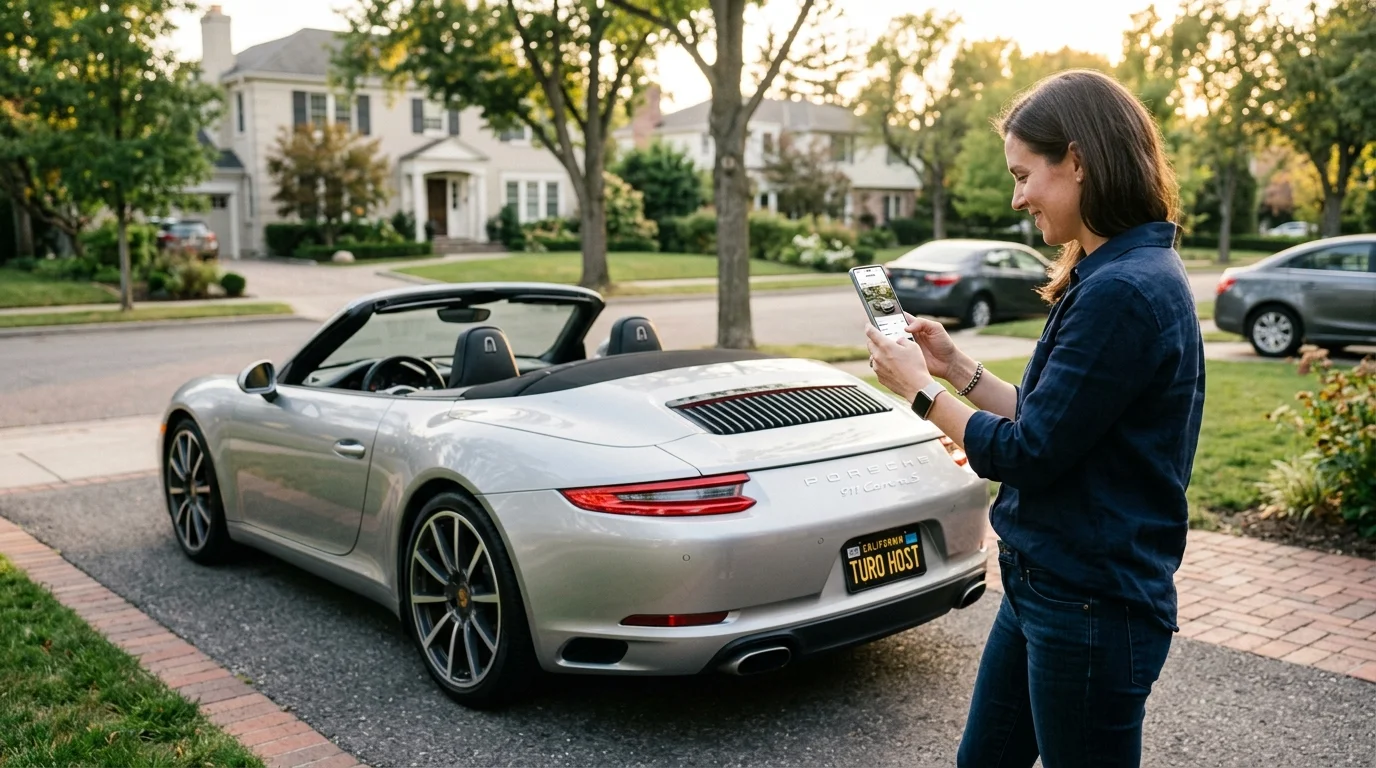
For Turo hosts and photographers managing listings from the field, desktop software feels impractical. Mobile apps deliver quick background blur edits directly on your phone—ideal for last-minute touch-ups before uploading inventory. Here are the most reliable options:
Snapseed (iOS & Android)
Google's free editor includes a dedicated Blur tool with adjustable intensity. Select the area you want to blur, set the radius, and apply. The interface is intuitive; processing takes 5–10 seconds per image. Limitation: manual selection requires precision on small screens, making it better for simple backgrounds than complex vehicle edges.
Adobe Lightroom Mobile (iOS & Android)
Offers non-destructive blur via the Adjustment Brush. Create a mask around the background, then reduce clarity and sharpness selectively. Syncs edits across devices. Trade-off: requires a Creative Cloud subscription ($10/month), but gives you professional-grade control unavailable in free apps.
Photoshop Express (iOS & Android)
Adobe's lightweight alternative includes basic blur filters and selective editing. Faster than full Photoshop, slower than Snapseed. Works well for uniform backgrounds (white, solid colors) but struggles with complex lot environments.
Blur Photo (iOS & Android)
Dedicated blur app with preset intensity levels. Tap the background, adjust blur strength, save. Minimal learning curve; best for dealers needing speed over precision. Limited to simple blur effects—no background replacement.
When to Use Mobile vs. Desktop
Mobile apps excel for final polish: removing distracting reflections, softening busy parking lots, or evening out uneven lighting before listing goes live. Reserve desktop tools (Photoshop, AI background replacement solutions) for bulk processing or complex edits. Small preview screens and touch-based selection make mobile apps impractical for 50+ vehicles weekly—desktop automation wins there. For 5–10 quick edits? Mobile is faster.
Common Questions About Blurring Car Photo Backgrounds
Can I blur a background in Photoshop for free?
Photoshop's full version requires a subscription, but Adobe offers a free seven-day trial—enough time to process several vehicles. Alternatively, Photoshop Express (free mobile app) includes basic blur filters, though desktop alternatives like GIMP deliver more control without cost. For dealerships processing dozens of photos weekly, free trials become impractical; subscription-based or AI-powered tools prove more economical long-term.
How long does it take to blur one car photo?
Manual blurring in Photoshop typically requires 2–3 minutes per image: selecting the background, applying the blur filter, and refining edges. Mobile apps compress this to 30–60 seconds for simple backgrounds. AI-powered solutions like Car Photo Booth eliminate the manual work entirely, processing images in 5–10 seconds while simultaneously removing and replacing backgrounds—a significant advantage when managing 50+ weekly listings.
Will blurring reduce photo quality?
No. Proper blurring preserves the vehicle's sharpness while softening the background, actually improving perceived image quality by reducing visual clutter. Poor execution—over-blurring the car itself or creating unnatural gradients—damages quality. Desktop tools offer precise control; mobile apps sometimes struggle with complex lot environments where trees, buildings, and reflections require selective masking.
What's the best blur effect for car photos?
Bokeh blur mimics professional camera depth-of-field, ideal for luxury vehicles where aesthetic appeal drives sales. Gaussian blur works faster for fleet inventory where speed matters more than artistry. Motion blur suits action shots; radial blur emphasizes the vehicle's center. Test each effect on sample photos before committing to a processing workflow.
Can I batch process car photos?
Yes. Photoshop's Actions feature automates blur application across multiple images, though setup requires technical knowledge. AI tools handle batch processing natively—upload 100 photos, apply one background, and export all simultaneously. This workflow eliminates the manual repetition that makes Photoshop impractical for dealerships managing large inventories.
Is background removal better than blurring?
It depends on your use case. Blurring is faster and preserves context (showing the lot or showroom environment). Background replacement is more professional, offering 100+ studio-quality backdrops that elevate perceived vehicle value—critical for premium listings. For speed-focused dealers, blur wins. For competitive markets where presentation drives conversions, replacement dominates.
Choosing the Right Background Blur Method for Your Dealership or Photography Business
The decision between blurring and replacing your car photo backgrounds hinges on four practical factors: your budget, available time, photo volume, and the competitive positioning you need. Each method serves a distinct purpose, and the right choice depends entirely on your workflow and business goals.
Budget is the first filter. Free online tools and mobile apps cost nothing but demand manual effort per image. Photoshop requires a subscription ($20–$55 monthly) and substantial learning time. AI-powered background removal—including solutions like Car Photo Booth—ranges from $3–$10 per image or $7–$99 monthly for batch processing. For dealerships processing 50+ photos monthly, per-image costs quickly justify a subscription.
Time constraints separate casual photographers from high-volume dealers. If you're editing one or two cars weekly, Photoshop's precision control justifies the setup time. If you're managing 10+ daily listings, manual methods become unsustainable. AI tools process batches in minutes—100 photos, one background, instant export. This efficiency gap is why dealerships increasingly shift away from manual blur toward fully automated background replacement.
Volume and desired output quality converge in the final decision. Blurring preserves environmental context but looks less polished than professional background replacement. Professional backgrounds have become the standard for competitive markets where perceived vehicle value directly influences buyer decisions. Premium dealerships and Turo hosts typically favor replacement over blur because it elevates the entire listing presentation.
Test before committing. Try Photoshop's free trial for precision work, a free online tool for occasional use, or an AI platform's free tier to process your next 10–15 photos. Your workflow preference will become clear immediately—speed-focused dealers gravitate toward AI, while photographers prioritizing maximum control choose Photoshop.